
For SteamOS · Free and open source
Everything you play,
in one place.
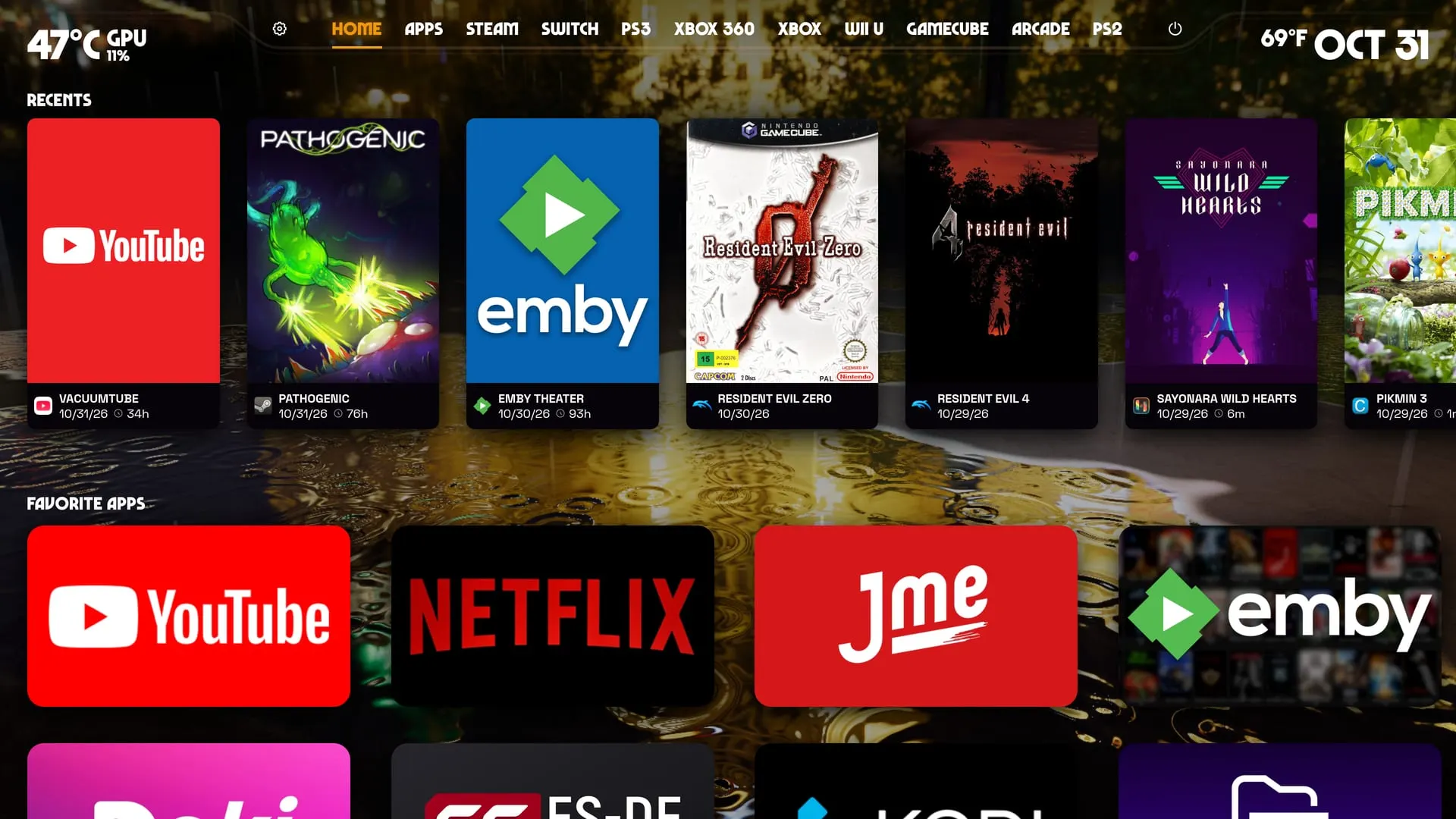
vaporTV is an Android TV–style home screen for a SteamOS box under the TV. Steam games, emulated consoles, arcade sets and streaming apps sit side by side, and the controller in your hand is all it takes.
- 18 consoles and 7 arcade boards
- Netflix, YouTube, Emby, Jellyfin, Plex and Kodi
- Updates itself, signed, from the couch
What's inside
One home screen for everything on the box.
01 · Your consoles
Every console. No ES-DE in the way.
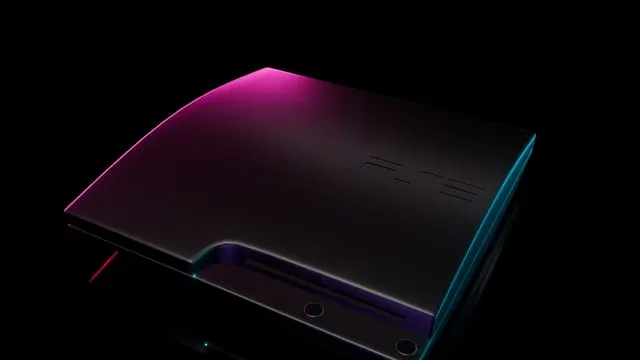
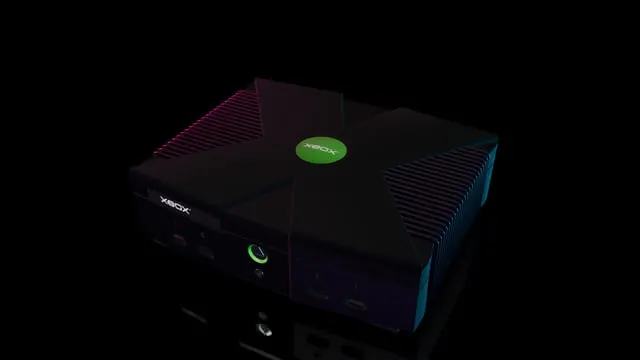
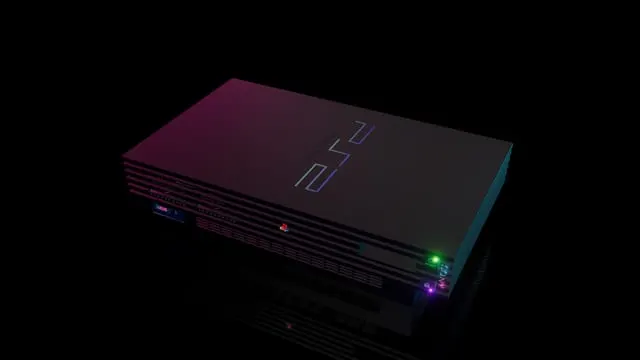
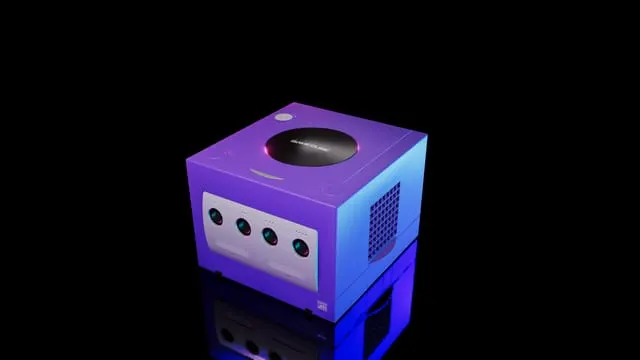
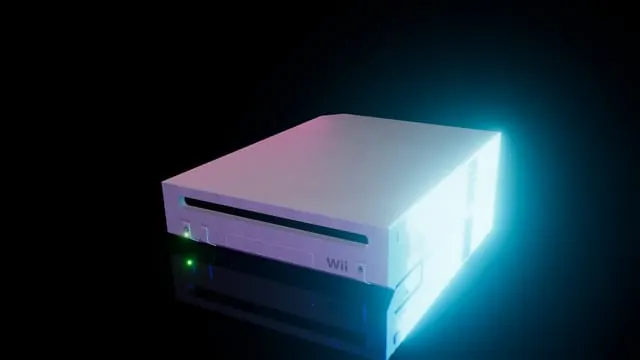
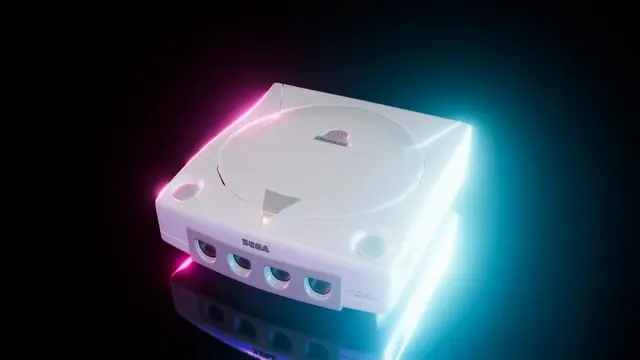
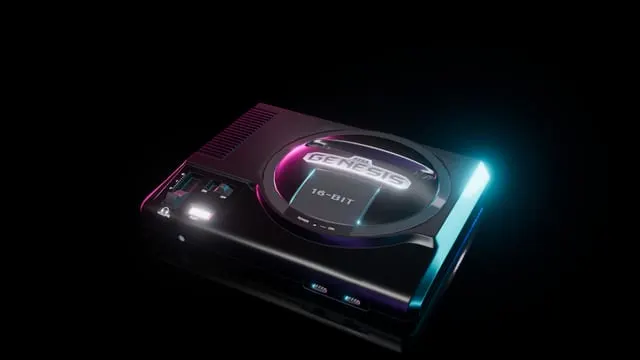
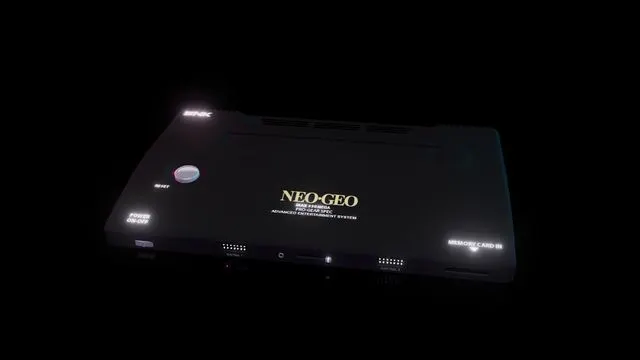
vaporTV finds the games in your EmuDeck folders and opens each one in the right emulator, straight from its own tab. No ES-DE, no Steam ROM Manager, no shortcuts to make. Your Steam library sits right beside them.
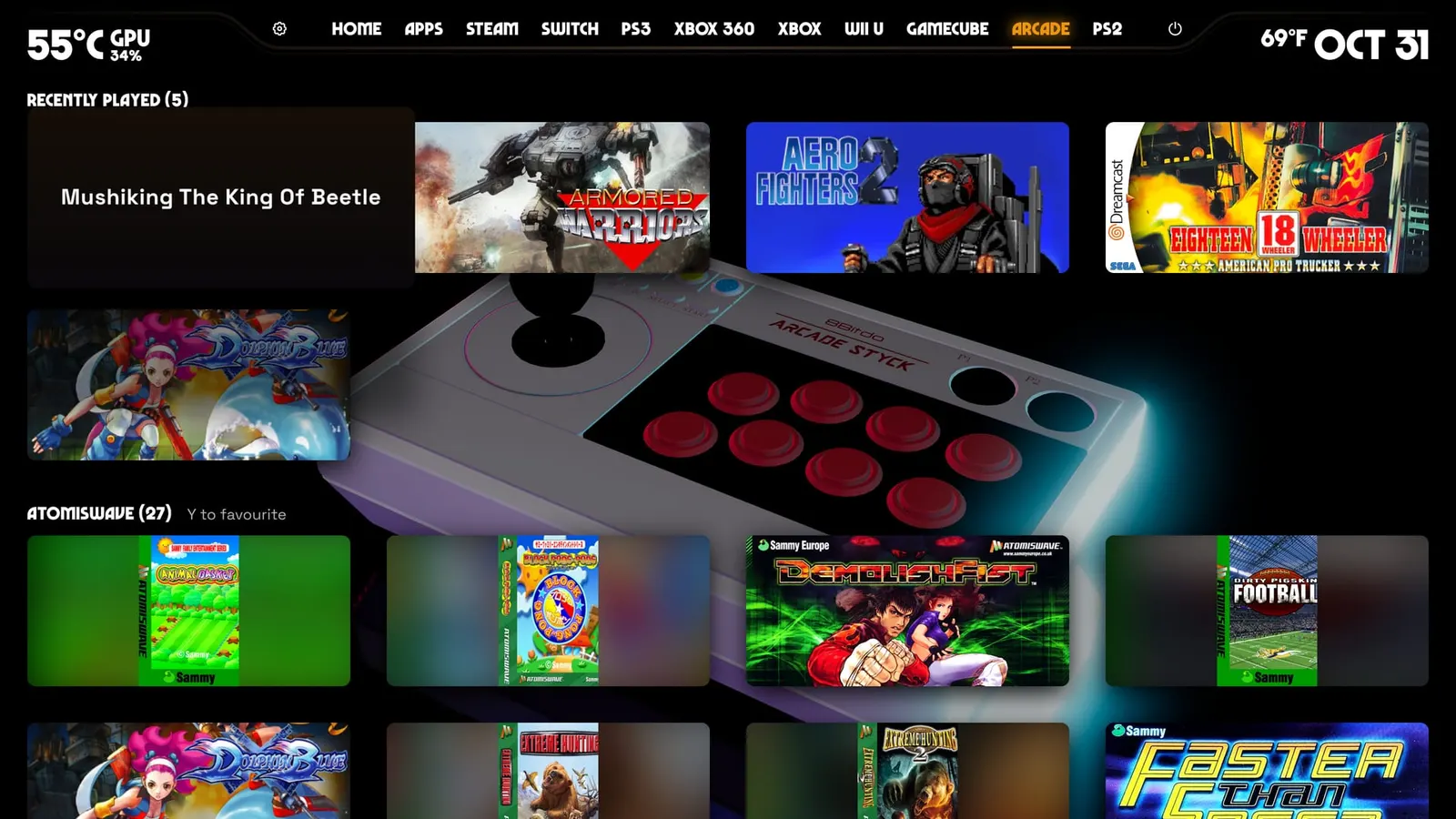
- 18 consoles and 7 arcade boards, from NES to Switch, PS3 and Xbox 360, each with its own tab
- Steam and console games together. Recents on Home mixes them by when you last played
- Covers found for you, from RetroArch's thumbnails and SteamGridDB
- Start on any game to rename it, move it to another emulator, give it new art, or delete it
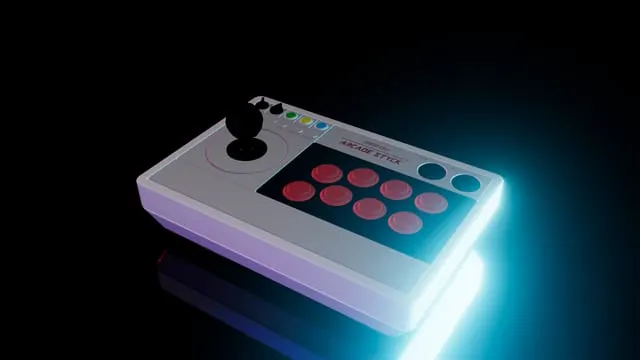
- Hold Select + Start to close a game and land back home
02 · Video player
Your films, full screen, picked up where you left off.
Sign in to your Emby or Jellyfin server and a Video tab appears: Continue watching, Next up, Recently added and every library. Films play full screen in vaporTV's own player, with the box's graphics chip doing the work.
- Continue watching on Home, one press from the couch
- Audio and subtitles switch mid-film, without losing your place
- Your progress goes back to the server, so its other apps pick up there too
- TV remotes work: play, pause, rewind and fast-forward keys do what they say
1:12:401:58:03
- APlay / pause
- ◀▶Scrub, faster the longer you hold
- L2R210 seconds back / on
- YAudio & subtitles
- BStop, and save your place
03 · Music player
A real music player, built in.
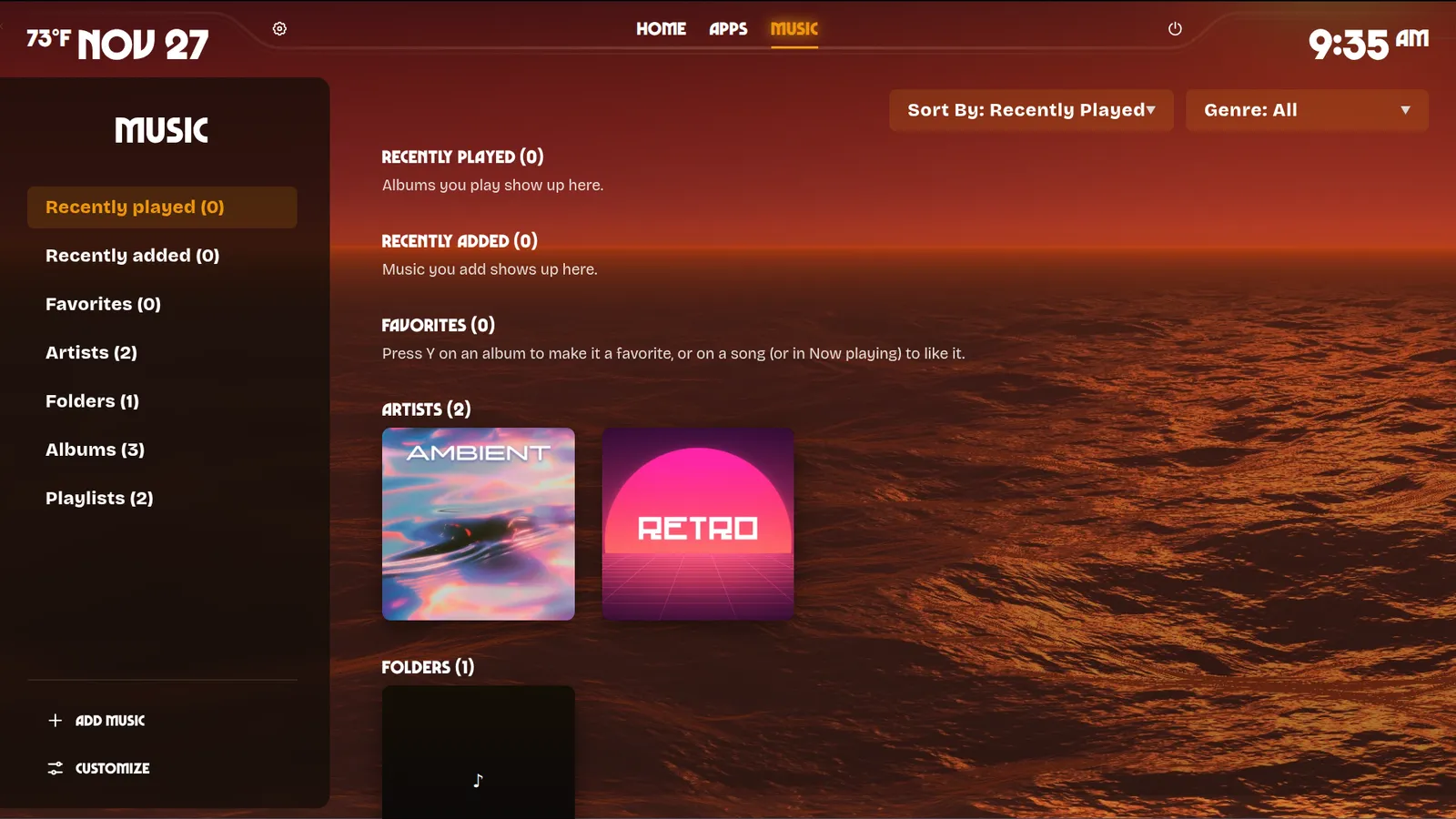
The Music tab gathers your songs from everywhere into one library, sorted by their tags: no folders to tidy. Play an album, or let it run quietly behind the menus while you pick a game.
- From anywhere: the box, USB drives and SD cards, a computer or NAS at home, your Emby or Jellyfin server, or straight from your phone by scanning a code
- Liked songs and favourite albums, with a Music row on Home
- Now playing drops down under the top bar as each song starts. L3 skips from anywhere
- Evened-out loudness, so one loud song doesn't jump out
04 · File browser
Files, from the controller. No Desktop Mode.
Browse your folders, USB drives and SD cards from the couch. Open pictures, videos and songs full screen, or cut, copy and paste between drives: games onto the box, photos off a card.
- Copying… and Moving… show how far they've got
- Nothing is ever written over: a second copy becomes Name (2)
- Pull a drive out mid-copy and nothing half-written is left behind
- Pictures
- JPG · PNG · WebP · GIF · AVIF
- Videos
- MP4 · WebM · MKV · MOV · M4V
- Songs
- MP3 · OGG · FLAC · WAV · M4A · AAC · Opus
- Everything else
- Listed, and ready to cut, copy and paste
05 · Your buttons
Every button, where you want it.
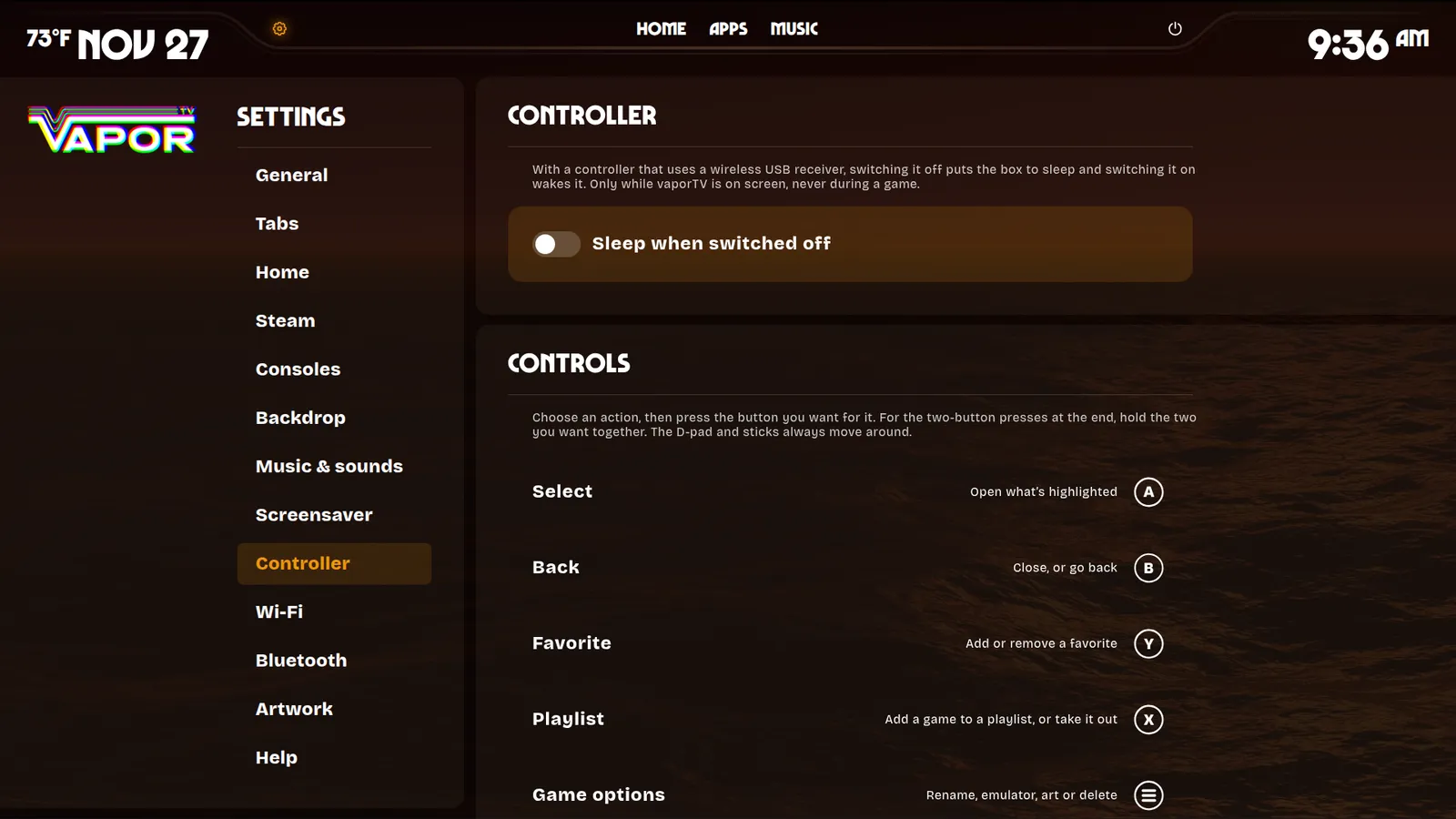
Pick an action in Settings → Controller and press the button you want for it. If another action had that button, the two swap, so nothing is ever left without one.
- Two-button presses too: close a game, sound off, report a problem. Hold the pair you want
- Switch the controller off and the box sleeps. Switch it on and it wakes
- TV remotes and keyboards work as well
- Kept through updates: new actions go on a free button, yours stay put
06 · Playlists
Playlists for games, films and songs.
Press X on any game, film or episode to put it in a playlist. A Home playlist is a row on Home and can mix every system with films and shows. A console playlist is a list on that console's tab.
- Show one in several places: a row on Home and a list on its tab at once
- Music playlists from any song or album. Playlist files you already have turn up too
- Set a playlist as background music and it cycles behind the menus, shuffled. It pauses while you play and comes back when you're done
07 · Make it yours
Your intro. Your music. Your backdrop.
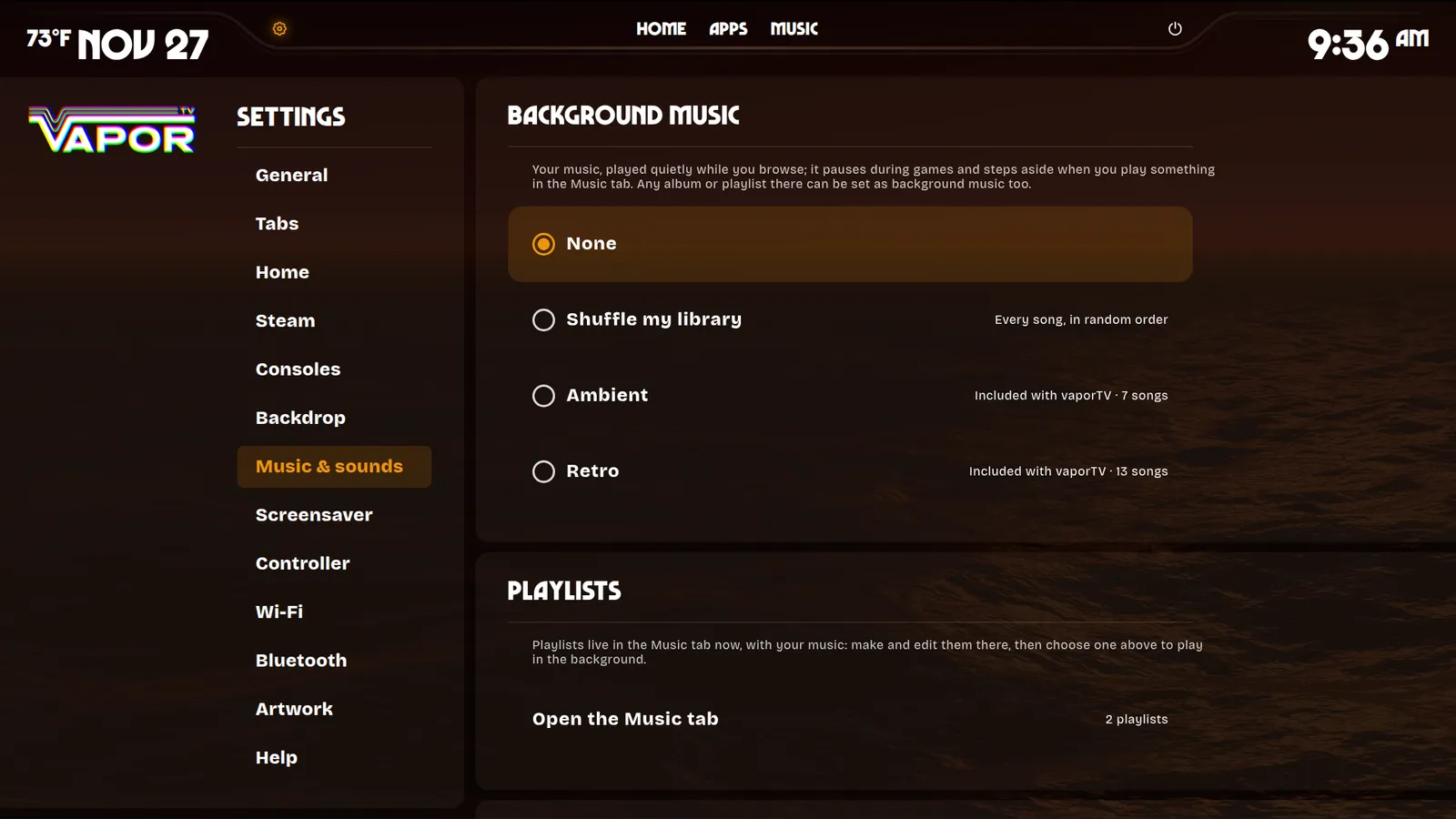
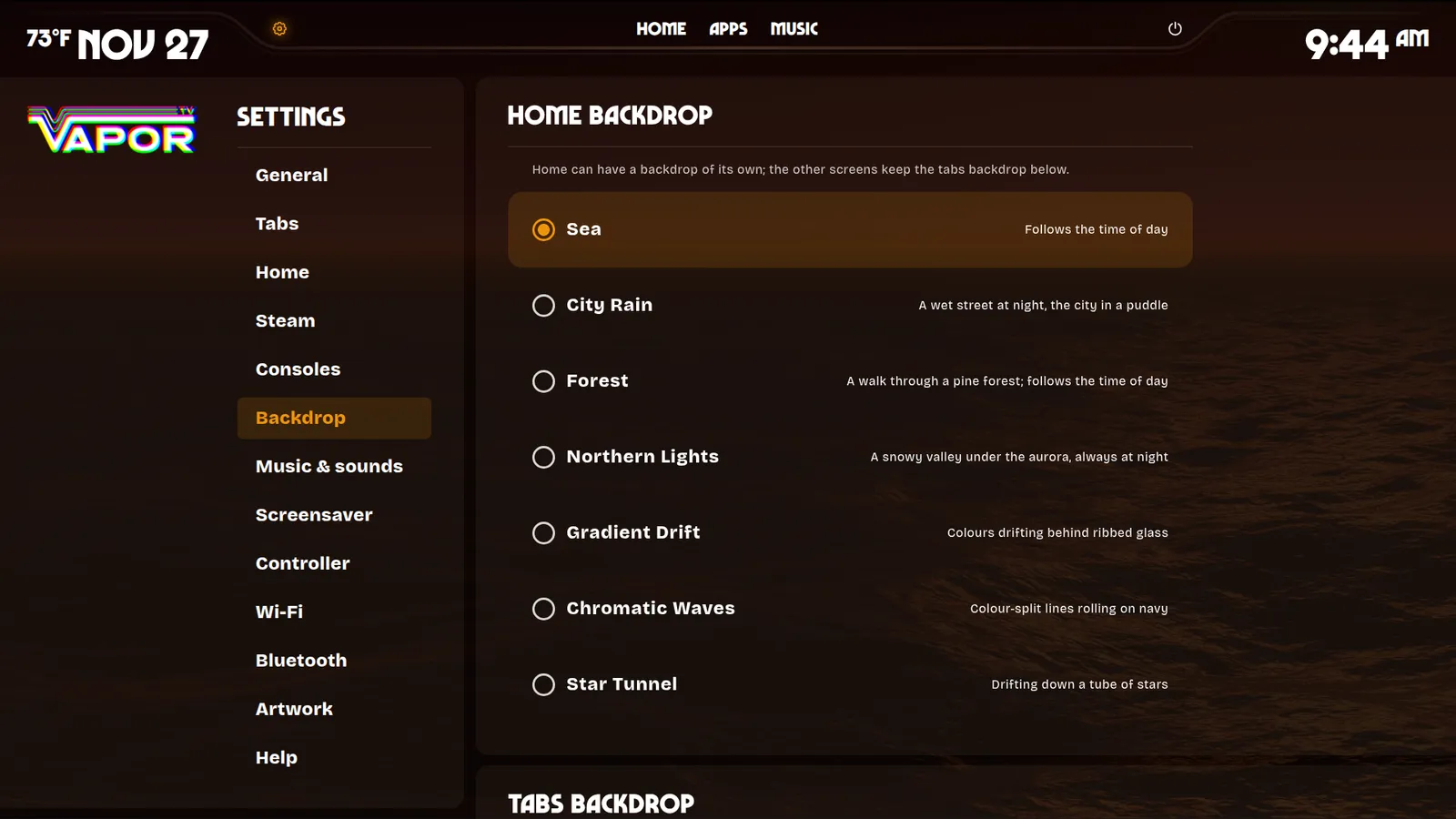
vaporTV starts the way you choose: your own intro video, then your music behind the menus over a backdrop you picked. Home and the tabs can each have their own.
- Intro: vaporTV's, none, or any video you put in
~/Videos/vaporTV Intros - Background music: shuffle your whole library, your liked songs, or any playlist, with rain, crickets, ocean waves or birdsong underneath
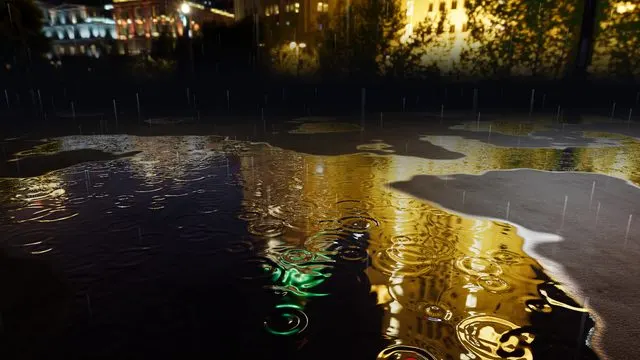
- Seven live 3D backdrops: Sea and Forest follow the time of day; City Rain, Northern Lights, Gradient Drift, Chromatic Waves and Star Tunnel
- Or your own videos and pictures, one on a loop or all of them shuffled, fading from one to the next
- Your tabs, in your order: up to nine in the top bar, the rest on More




Install
One trip to Desktop Mode, then never again.
-
01
Download
In Desktop Mode, grab
vaporTV.AppImagevaporTV.AppImagefrom the latest release. -
02
Open it
Open it from Dolphin. The setup window lets you start vaporTV with Gaming Mode, let the controller wake the box, and pick the streaming apps to set up. Click Install.
Nothing happens? Right-click → Properties → Permissions → tick Is executable.
-
03
Back to the couch
Click Return to Gaming Mode. A short welcome tour shows the buttons. From here, new versions arrive in Settings → General → Updates.
What you'll need
- vaporTV
- SteamOS 3.7 or later, in Gaming Mode, on a TV. A Steam Deck works docked; handheld is experimental.
- Steam games
- Nothing more. vaporTV reads your library and collections, dynamic ones included.
- Console games
- EmuDeck with its emulators and your games in
Emulation/roms. vaporTV doesn't emulate anything itself; a console's tab appears once its emulator and games are there. - Cover art
- A free SteamGridDB API key, added in Settings → Artwork. Console games also get box art from RetroArch's thumbnails without one.
- Streaming
- Internet. Netflix, Disney+ and friends open in Chrome (setup installs it); YouTube, Emby, Jellyfin, Plex and Kodi use their own apps.
- Wake from controller
- Optional: an admin password. SteamOS has none until you run
passwdin Konsole.
FAQ
Questions, answered.
Is vaporTV made by Valve?
No. vaporTV is an independent, open-source project. It isn't affiliated with or endorsed by Valve, and it doesn't replace SteamOS: it runs as an app in Gaming Mode, alongside Steam.
Does it cost anything?
No. It's free and licensed under the GPL-3.0. The source is on GitHub.
Does it include emulators or games?
No. vaporTV shows and opens what's already on your box. Set up emulators with EmuDeck and bring your own games; a console's tab appears once its emulator and games are there.
Will it work on a Steam Deck?
Docked to a TV, yes. In your hands it runs and shows the battery, but it's laid out for a TV, so handheld use is experimental.
Can I still get to Steam?
Yes. Steam games open in Steam, and any game's options have Open in Steam. Hold Select + Start to close whatever's running and come back to vaporTV.
How do updates work?
vaporTV checks for new versions, shows what changed, and installs them from the couch. Updates are signed, so it installs only ones that came from vaporTV. If one breaks something, the updates guide walks you back.
What does it collect?
No account, no analytics, no tracking. vaporTV only goes online for something you'd see on screen or something you switched on. The privacy guide lists every service it talks to and why.
How do I remove it?
Open the AppImage in Desktop Mode and click Uninstall.
Put the keyboard away.
vaporTV runs daily on its author's living-room box. It's early, so expect rough edges and please report them.